This guide is for anyone planning to buy Shadowrocket, unsure which app to choose among similar names, or checking an installed app. Open the full App Store product page and verify the developer, official icon, and app ID. After purchase, return to that same page to confirm the installation status. The name, search position, and feature description are clues—not proof of identity.
1. Verify the app before buying—not by search rank
Shadowrocket is a paid client for Apple platforms, available exclusively through the App Store. Search results may show apps with similar names or descriptions of comparable network features. A top-ranked result or a name that includes “Shadowrocket” does not prove it is the app you want. Open the specific product page to verify it rather than relying on search listings or promotional images.
The correct developer name is Shadow Launch Technology Limited. Check the full name—not just “Shadow”—and don’t mistake the app name, brand terms in the description, or a feature name for the developer field. If a search result card doesn’t show all the details, open the product page and check there. If you can’t confirm the information, pause before buying.
Bottom line: verify all three before you buy
Check the developer name, icon, and app ID together on the same product page. If any detail doesn’t match, return to the download guide and reopen the correct page. Don’t rely on a similar name or search ranking to fill in the gaps.
2. Verify the app on the App Store in four steps
Use the download guide to open the App Store product page. Availability may depend on your store region. If the page won’t open or the app doesn’t appear in search, don’t choose a similar result instead. Check the region of your current App Store account, then see whether the correct product page is available in that store.
-
Open the product page
Go to the download guide and open the App Store product page. Check that the app is named Shadowrocket and that you’re viewing its details—not a preview of another search result.
-
Check the developer
Check the developer listed near the app name, then verify the seller information in the product details. The correct name is Shadow Launch Technology Limited. The page language may vary, so match the full name exactly.
-
Compare the icon
Compare it with the official icon shown below: a rocket outlined in blue and purple on a white background. The icon is a helpful clue, but it doesn’t replace checking the developer and app ID.
-
Verify the link
Use the App Store’s Share option to view or copy the product link, then check for
id932747118. Once confirmed, review the current price, compatibility, and purchase button.
On mobile devices, a link may open directly in the App Store instead of appearing in the browser’s address bar. Use the product page’s Share option to copy the link and check its ID. A regional path or extra parameters don’t necessarily mean it’s a different app. The key is id932747118 in the product path—not the region code.
3. What the official icon and app ID can confirm
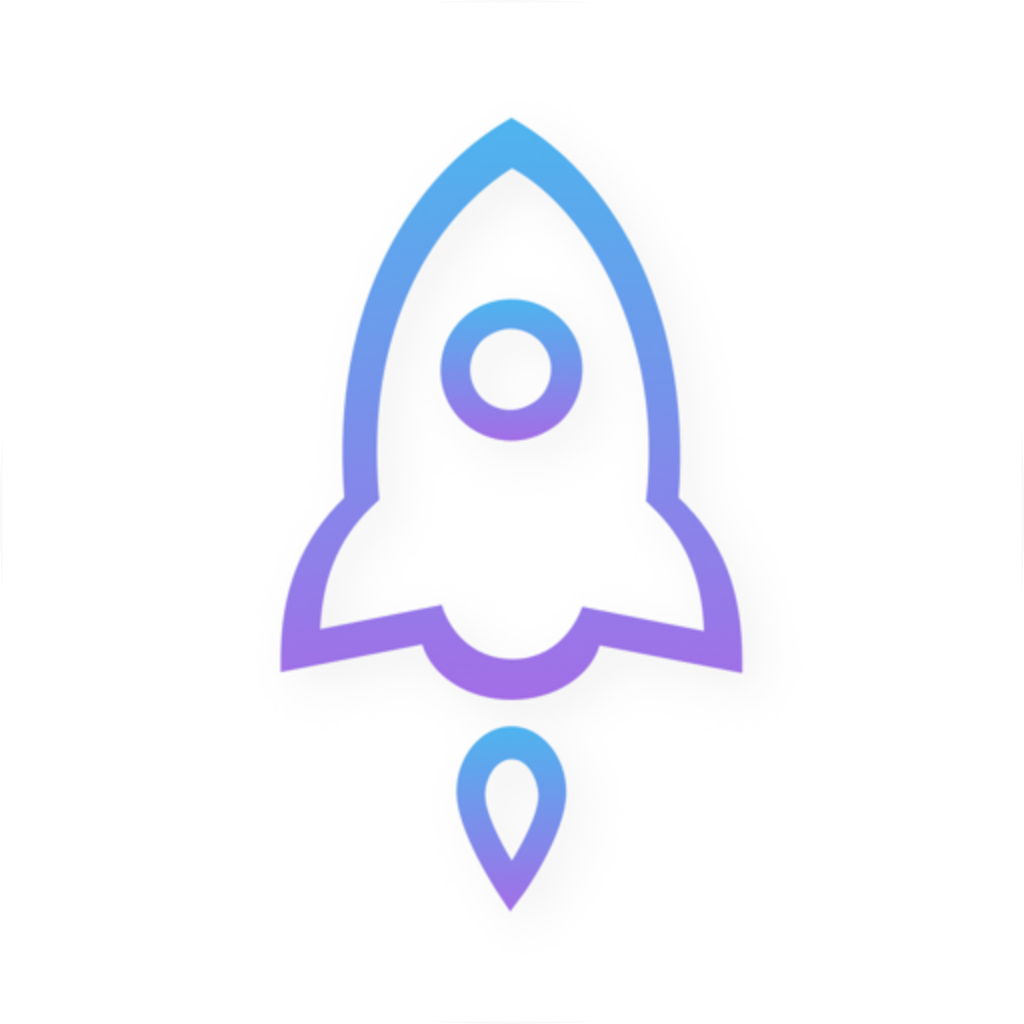
The icon is a visual cue for quick identification. Compare its overall outline and composition—not just whether it shows a rocket. Names and icons can look similar, so continue checking the developer and app ID even when the image seems right. The image shown here is the official app icon, not an in-app screenshot.
The app ID identifies a specific product on the App Store. The full address of the correct product page is shown below; it is neither a subscription URL nor a server address. In the link, us is the store-region path, while the number at the end identifies the product.
https://apps.apple.com/us/app/shadowrocket/id932747118- Name: Helps you find a candidate, but a similar name alone doesn’t confirm its identity.
- Developer: Confirms who published the app. Verify the exact name: Shadow Launch Technology Limited.
- Icon: A quick visual check that should match the official icon.
- App ID: Confirms which product the link points to. The correct ID is 932747118.
If you receive an image or written description, ask to see the actual App Store product page rather than guessing what you’re being asked to buy. If the description names the correct app but the product link points to a different ID, trust the actual product page and don’t buy through that link. This guide explains how to verify an app; it does not draw conclusions about any specific app based on a promotional image.
4. After purchase: confirm the app and what the purchase covers
After buying, return to the same product page you verified and check the button. If the app is installed and compatible with your device, you’ll typically see an option to open it; if it isn’t installed, a redownload option may appear. Button status also depends on your account and device, so it can’t confirm a purchase on its own.
- Make sure the App Store is using the account that made the purchase, then check the app name in your purchase history.
- Open the app from the product page with app ID 932747118. Don’t rely on a similar name or icon on your Home Screen.
- When switching devices, check compatibility and the App Store button on the new device before deciding whether to investigate your purchase history.
- If you bought a different app with a similar name, note its actual name and ID, then use the App Store purchase history and report-a-problem process to follow up.
Shadowrocket is a one-time purchase. Check the current App Store product page for the price and currency. Buying the client does not buy a service plan. The purchase gives you access to the client; it doesn’t include a server or subscription. This guide assumes you already have your own service provider and subscription. This site does not provide, sell, or recommend nodes or subscriptions.
5. After installation: separate app verification from connection setup
After installation, check Home for existing connections, Config to manage configuration files, and Settings for related options. These interface names help you follow the manual, but having a particular protocol or connection toggle doesn’t prove the app’s identity. Other products may describe similar features; verify the app on its App Store product page.
In Global Routing, Config, Proxy, Direct, and Scene control how connections are handled—they don’t indicate purchase status. The comparison below covers Shadowrocket’s own routing options to explain why having the right app and having a working connection are separate matters. Using Config as described assumes you already have a verified configuration file that meets your needs.
Config
RecommendedChoose a strategy based on the rules in the current configuration; this doesn’t automatically send a whole category of sites direct or through a proxy. First, check which configuration is active and review its Rule content in Config.
Best for: applying traffic rules when you already have a suitable configuration
Proxy
Route traffic through a proxy to check whether rule-based routing affects the connection. You still need valid connection details and a working server; changing the routing mode doesn’t provide a service.
Best for: temporarily checking whether routing rules are affecting an existing connection
Direct
Use direct routing. Turning on the connection switch doesn’t mean every request will go through a proxy. Check the current Global Routing selection as well.
Best for: checking direct connections on your local network as a troubleshooting comparison
Scene selects how connections are handled based on the conditions you set; check it against your own scene configuration. Settings → On Demand controls automatic connection behavior; it isn’t a way to verify a purchase. If the connection status changes automatically, check those conditions before assuming the app is incorrect.
- When reviewing rules in Config, keep keywords such as
DOMAIN-SUFFIX,GEOIP,IP-CIDR, andFINALunchanged. Rule order and the selected policy affect the outcome. - After importing an existing subscription in Home, a successful import only means the client received the data. It doesn’t guarantee that every connection works or mean the subscription came from the App Store.
- To continue setup, read the quick start guide. For rule syntax, see configuration fields. Don’t confuse connection problems with verifying an app on the App Store.
6. Shadowrocket App Store verification and purchase FAQs
Can I buy the app with a similar name if I can’t find Shadowrocket?
Don’t buy a similar result. Open the correct product page from the download guide and check your current App Store account region and whether the page is available. Another app with a similar name is not a substitute. Verify the developer, official icon, and app ID together.
The link doesn’t start with us. Did I buy the wrong app?
The region path alone isn’t enough to tell. Check the developer on the actual App Store product page and see whether the shared link contains id932747118. The region path and extra parameters can vary; the product ID is the number to verify here.
What if the icon matches but the developer doesn’t?
Pause the purchase and reopen the correct product page from the download guide. The full developer name should be Shadow Launch Technology Limited. A similar icon is only a visual clue and doesn’t override a mismatch in the developer information.
I bought it, but there’s no working connection. Did I get the wrong app?
First, confirm that the installed app is the one with ID 932747118, then check your configuration. The client purchase doesn’t include a service plan. If you already have a subscription, follow the quick start guide to import it in Home and check the update results. A failed connection neither proves you bought the wrong app nor confirms that the app is genuine.
Do I have to pay again after switching to an iPad?
On your iPad, check which App Store account you used for the purchase, then open the same product page to review compatibility and the button status. Refer to the App Store page to see whether it’s a universal purchase. If the status doesn’t match your purchase history, check the account and history first. Don’t repurchase based only on whether the app is installed on another device.