Shadowrocket · Official Manual

Shadowrocket User Guide

A rule-based proxy client for iPhone and iPad. Buy it once on the App Store, then import your existing server details and configure rule-based routing.

  • Global Routing
  • Rule
  • VLESS
  • WireGuard
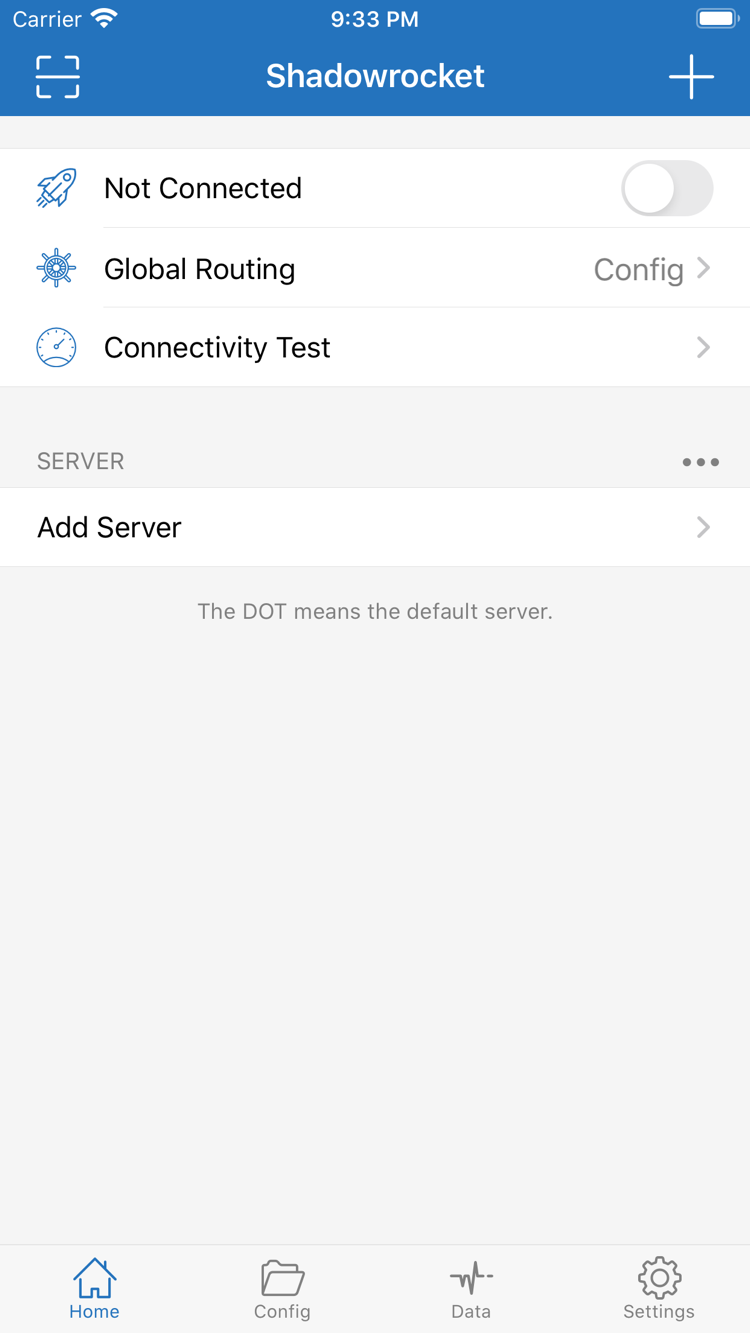
Shadowrocket app home screen

Purchase & First Launch

App Store Purchase Steps

Check the product page first, then confirm device compatibility. Purchasing the app, preparing server details, and authorizing the system VPN configuration are three separate steps.

iPhone

Open the App Store product page, check the app name, developer, and compatibility, then complete your purchase. On the first connection, the system will ask to add a VPN configuration. Confirm, return to Home, and check the selected server and Global Routing. Refer to the App Store listing for system requirements.

View the iPhone guide →

iPad

Check your purchase history using the same Apple ID, then get the app from its product page. Whether a purchase can be used on both devices depends on the App Store listing. After installation, check the server details, configuration file, and VPN authorization on this device. A purchase record does not mean connection setup is complete.

View the iPad guide →

Shadowrocket is also available from the same App Store on Mac and Apple TV. Check the App Store listing for compatibility, system requirements, and whether the purchase is universal.

Download on theApp Store

The App Store is the only place to purchase and install Shadowrocket. The currency, payment terms, and store availability shown depend on the storefront for your account. If search results are unclear, open the exact product page to verify the app rather than relying on an alternative name. After installation, prepare your existing subscription or server details before following the import steps in the guide.

If you have purchased the app before, first check whether you are signed in to the same storefront account used for the original purchase, then look for the app in your purchased items. Restoring the app and restoring its configuration are separate tasks. After reinstalling, check whether the server list and selected Config are still on this device. Refer to the App Store listing for pricing, compatibility, and purchase eligibility.

Interface & Configuration

Shadowrocket Key Features

First distinguish server details, configuration files, and connection modes, then choose the relevant interface entry. This index keeps interface labels and rule keywords in their original form.

Rule Conditions & Policies

Rule-based routing selects a connection policy based on request attributes. In Config, confirm which file is active, then set Global Routing to Config to evaluate requests against its rules. Rules are matched from top to bottom: specific domain or address conditions usually go first, with FINAL at the end. PROXY routes a request through the proxy, DIRECT connects directly, and REJECT blocks the request. example.com below is only a syntax example. Before copying it, understand the matching scope and adjust it for your needs; it is not a complete, ready-to-use configuration.

DOMAIN-SUFFIX,example.com,PROXY
IP-CIDR,192.168.0.0/16,DIRECT
FINAL,DIRECT
ConfigGlobal RoutingRule

Three Global Routing Modes

Config mode applies the rules in the selected configuration; Proxy mode routes applicable requests through the proxy; Direct mode connects directly. These modes change how requests are routed. They do not create a server or change the protocol. When troubleshooting, first check the current selection, then decide whether a temporary change is needed.

For example, if a server test succeeds but a particular destination does not load, keep the server unchanged and compare the results in Config and Proxy. Then check for a relevant Rule, DNS settings, or an issue with the destination itself. Avoid updating the subscription, changing servers, editing DNS, and adjusting rules all at once. Otherwise, even if the connection starts working again, you will not know which change helped. See the configuration field reference for the full fields and matching order.

From Importing Details to Verifying Results

Shadowrocket Quick Start

These three steps are for users who already have a subscription or server details. For your first setup, establish a manual connection before configuring automatic triggers or complex rules.

  1. Add Server: Import Existing Details

    In Home, tap Add Server and choose an import method based on the details you have. For an existing subscription, select Subscribe. For a single share link, use the relevant import option. To enter details manually, select Type first, then check Host, Port, and authentication fields one by one. Save, return to the list, confirm the new entry appears, and select the server you want to test.

    A subscription list and a single server entry are not interchangeable. Subscriptions typically retrieve and update multiple entries; a single share link usually describes one server. Do not enter a webpage URL in the subscription field or assume an import succeeded based on how it looks. If the list is empty, first check what you entered and whether the content was retrieved. If you are unsure about a protocol field, refer to your server details.

  2. Global Routing: Check the Connection Mode

    Check Global Routing in Home. To route requests by rules, select Config and confirm the active file in Config. To compare the proxy route, you can temporarily select Proxy. Direct connects without the proxy and cannot confirm that a proxy server is working. Understanding the difference between these three modes before changing Rule policies can help prevent the mistaken conclusion that an added server is being used as expected.

    Rules are matched in order, so a broad condition near the top may take effect before a more specific one below it. To verify a DOMAIN-SUFFIX rule, use a specific target domain and confirm that the selected configuration contains the rule. example.com in the configuration editor is only a syntax example, not a real service. You do not need to add many rules for an initial test. Start with a minimal test you can repeat, then expand the configuration.

  3. Home: Connect & Verify

    After confirming the server and mode, turn on the connection switch. If the system asks to add a VPN configuration for the first time, follow the system prompts to confirm, then return to the app and check the connection status. Run Connectivity Test and try a specific destination. An enabled switch means the connection process has started; it does not guarantee that the destination is reachable.

    If a destination fails after connecting, note whether the issue affects all destinations or only one. Then check the server details, Global Routing, DNS, and rule order. Change one item at a time and repeat the same test. If the issue occurs only on a particular network, compare results before and after switching networks. If the system VPN configuration was removed, add it again instead of repeatedly changing the subscription URL.

These three steps establish a foundation of correct details, a clear connection mode, and verifiable results. When you move on to On Demand, iCloud sync, or more specific routing conditions, keep a verified copy of your configuration. If something goes wrong, compare against it first instead of layering issues from several configuration levels together.

View the full guide →

Verifying the Product Page & Purchase Details

Shadowrocket Authenticity & Facts

Shadowrocket Official Manual is the official Shadowrocket website and manual. To verify the app, check the developer name, official icon, and app ID. Do not rely on search ranking or a similar-looking name.

  • Shadow Launch Technology Limited
  • App ID 932747118
  • Official App Store Listing

Developer, Icon & App ID

On the product page, first confirm the name is Shadowrocket, then check that the developer is Shadow Launch Technology Limited. The app icon should match the official icon used on this site. Finally, check for id932747118 in the product page URL. All three details should identify the same app. Similar names may appear in search results; seeing “Shadowrocket” alone is not enough to verify the listing.

Verifying the app before purchasing separates finding an app from confirming its identity. Check the price, compatibility, and app description on the product page rather than relying on an old screenshot in an article. The purchase guide brings the verification steps together. If search results are unclear or you have questions before buying, read it first, then return to the App Store.

Store Availability & Account Region

The App Store displays apps and prices according to the country or region associated with your Apple ID. Shadowrocket may not appear in searches in the mainland China storefront. Check your account's storefront region to understand why the product page may or may not appear or allow a purchase. Being able to open a webpage does not mean the current storefront can complete a transaction. Refer to the storefront for your account for the displayed details and payment terms.

If the expected product does not appear after you open a link, do not assume the device is at fault. First check the app ID in the link, then review your account region, storefront status, and device compatibility. Follow the system and App Store instructions for changes involving account details or purchase eligibility. This manual explains how to verify the listing; do not substitute another product with a similar name.

One-Time Purchase & Restoring Purchases

Shadowrocket is a closed-source commercial app sold as a one-time purchase on the App Store. The US storefront price is approximately US$2.99; other storefronts display local currency, and the purchase page shows the actual price. Refer to the App Store listing for purchase eligibility across iPhone and iPad, availability on Mac and Apple TV, and system requirements.

When changing devices or reinstalling, first check the purchase history for your current Apple ID, then restore the app from your purchased items or its product page. After restoring the app, check the server list, selected Config, and system VPN configuration. If you use iCloud sync, also confirm that the relevant content has arrived on the target device. Purchase eligibility does not mean the configuration is complete, and having a configuration does not mean the current connection is working.

App Purchase ≠ Network Service

Purchasing the app gives you the right to use the client; it does not include a server you can connect to. You need your own existing subscription or server details to import using the guide. This site does not provide, sell, or recommend servers or subscriptions, and does not handle network services. The app purchase, server credentials, subscription updates, and connection results are separate steps; check each one when troubleshooting.

For example, if the app is installed but no servers are listed, first check whether the details were imported. If a subscription updated but the connection fails, check the server and protocol settings. If the server test succeeds but a particular destination fails, check the mode, DNS, and rules. Recording these results separately is more useful for finding the cause than repurchasing the app or changing every setting repeatedly.

App Updates & Configuration Maintenance

Update the app through the App Store. Automatic updates are managed in system settings. Refer to the store page for current product information; this manual does not list specific version numbers or update dates. If interface entries move, identify their current names, such as Home, Config, and Settings, then follow the purpose of the instructions rather than looking for a fixed location.

Updating the app, updating a subscription, and editing a configuration are different operations. Keep a copy of the original configuration before maintenance. Afterward, check the connection mode and selected file, then test a familiar destination. Traffic in Data can help with monitoring, but it cannot replace a destination access test. To understand keyword scope, read the terminology guide first, then consult the field reference for syntax and matching order.
Frequently Asked Questions

Does a successful subscription update mean I can connect?

A successful update means the content was retrieved or the list was refreshed. You still need to select a server, confirm its protocol settings, and test the connection. See the glossary for the difference between a subscription and a single server.

How are Config and Global Routing related?

Config manages configuration files; Global Routing sets the routing mode currently in use. In Config mode, also confirm the selected file and its Rule content. See the glossary for related terms.

Why is FINAL usually placed at the end of Rule?

FINAL sets the policy for requests that did not match earlier rules. Since rules are checked in order, put specific conditions first and the final policy last. See the glossary for condition scopes and policy meanings.

Can On Demand replace an initial manual test?

No. First confirm that a manual connection works and that the destination is reachable, then configure system triggers. On Demand controls when to connect; it does not supply server details. See the glossary for an explanation.

In-Depth Guides

Shadowrocket Articles

Separate guides cover purchase verification, connection troubleshooting, and link formats. When an issue arises, identify which step is involved, then follow the checks in the relevant article.

View all articles →